Before a recruiter ever sees your CV, a piece of software reads it first. Most companies run every application through an Applicant Tracking System (ATS), such as Workday, Greenhouse, Lever, iCIMS, Taleo or SuccessFactors, and it turns your PDF into a database record: name, email, job titles, dates, skills.
If it can’t read your CV properly, it doesn’t matter how good you are. Your experience lands in the wrong fields, your dates go missing, and you drop to the bottom of the search results.
So we tested our own CV maker the way an ATS would. It didn’t do well. We rebuilt it.
What an ATS actually sees
An ATS doesn’t look at your CV. It pulls the text out of the file and reads it from top to bottom. We did exactly that with the PDF from our demo CV, and here’s part of what came out:
Work Experiences
 University of Berlin 1914 - 1933              Institute for Advanced Study, Princeton
 Professor of Theoretical Physics               1933 - 1955
                                                Professor

Languages
 German                                         English
Three problems in five lines:
- Two columns get mixed together. The parser reads across the page, so two jobs blend into one. Which dates belong to which job? The software has to guess.
- Star ratings disappear. “German ★★★★★” is just an icon to a machine. The language level is gone.
- Non-standard headings. “Work Experiences” and “Educations” aren’t the headings parsers look for.
It looked nice to a human. To a machine, it was a puzzle.
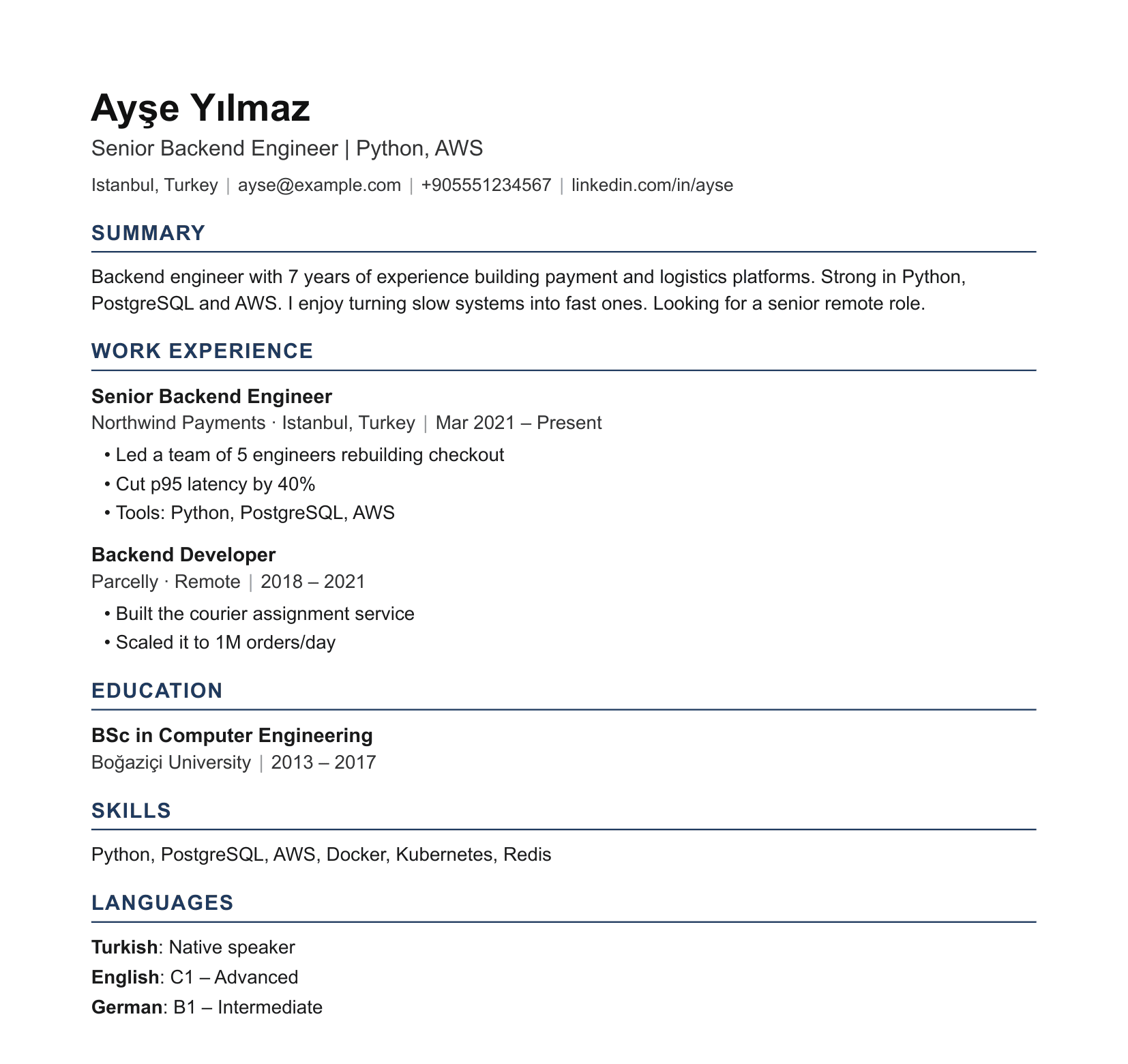
The new ATS-friendly PDF
Every CV made on Benture now downloads as a PDF built to be read by software first:
What’s different:
- One column, top to bottom. No side-by-side boxes, tables or text boxes.
- Standard section headings in the order parsers expect: Summary, Work Experience, Education, Skills, Languages, Certifications, Projects, Publications.
- Job title, company, location and dates on their own lines, with the dates written right next to each job, never floating in a separate column.
- Consistent dates like “Mar 2021 – Present” everywhere.
- Contact details as real text in the body, not icons and not a page header (many parsers skip headers).
- Language levels in words, like “C1 – Advanced”, instead of stars.
- Bullet points for achievements.
- No photo. Most ATS ignore it anyway, and many US and UK recruiters prefer CVs without one.
Behind the scenes, the PDF also carries proper metadata (your name as author, your skills as keywords) and is a tagged PDF, so its reading order is stored inside the file. That helps parsers and screen readers alike.
Europass-style PDF for European applications
If you’re applying in Europe, many employers, universities and public institutions expect the Europass format, the EU’s standard CV. You can now download your CV in that layout too:
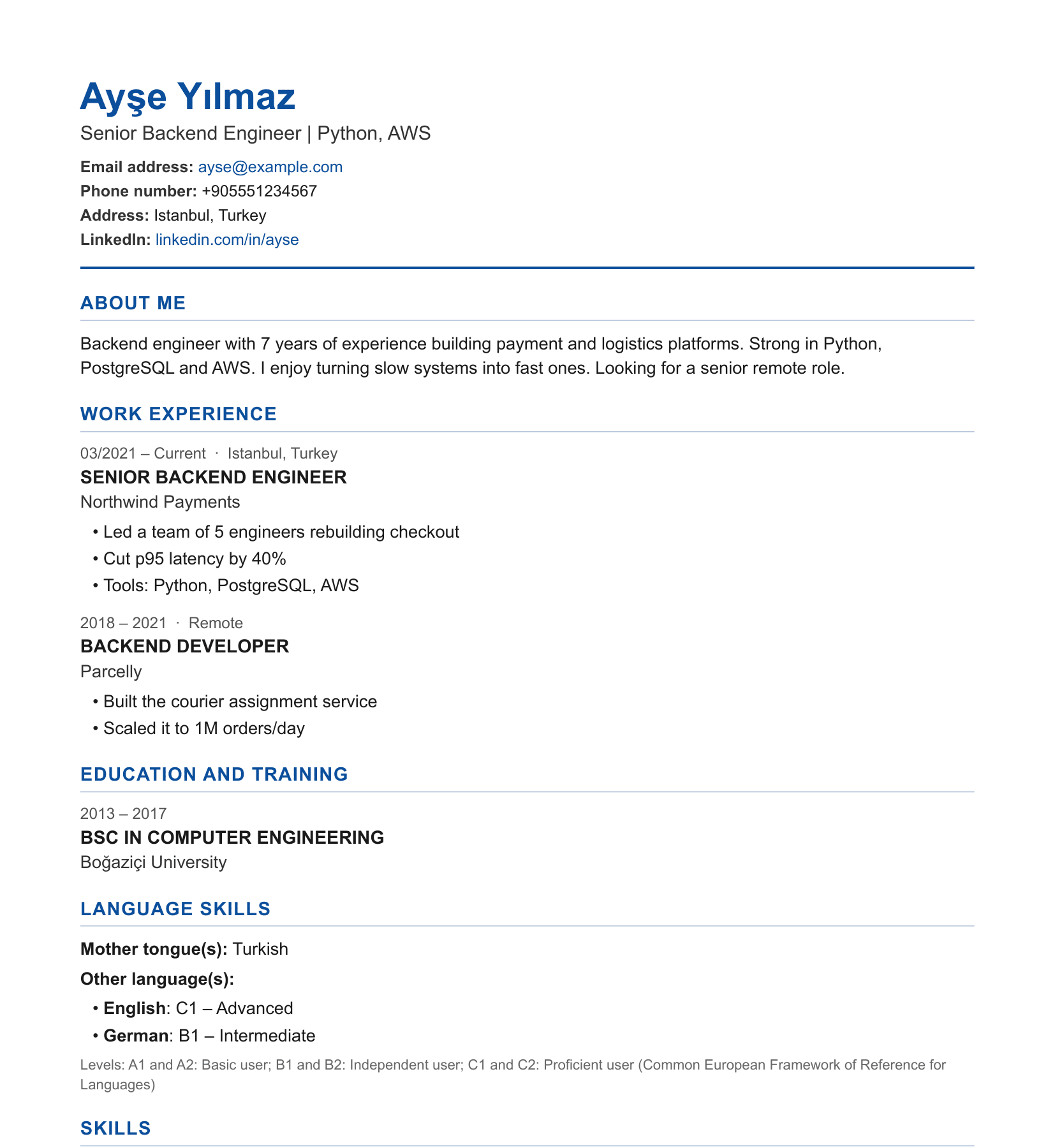
It follows the Europass structure:
- the Europass section names: “About me”, “Work experience”, “Education and training”, “Language skills”
- dates in the MM/YYYY format, ending in “Current”
- mother tongue(s) listed separately from other languages
- other languages rated on the CEFR scale (A1 to C2), with the standard legend
- your photo, if you added one (it’s common and accepted in Europass CVs)
It’s still one column of real text, so an ATS can read it just as well.
A note: this is a Europass-style layout, not the official EU tool. If an application specifically asks for a CV made in the official Europass editor, use europass.europa.eu.
Plain text for “paste your CV here” boxes
Some application forms don’t take a file at all. They give you a big text box. There’s now a plain-text download with the same sections and bullets, ready to paste, so you don’t have to reformat everything by hand.
A better CV builder
The CV maker itself changed too. It now asks for what recruiters and ATS actually look for:
- Professional headline: the job title you’re targeting, like “Senior Backend Engineer | Python, AWS”. Recruiters search for these words.
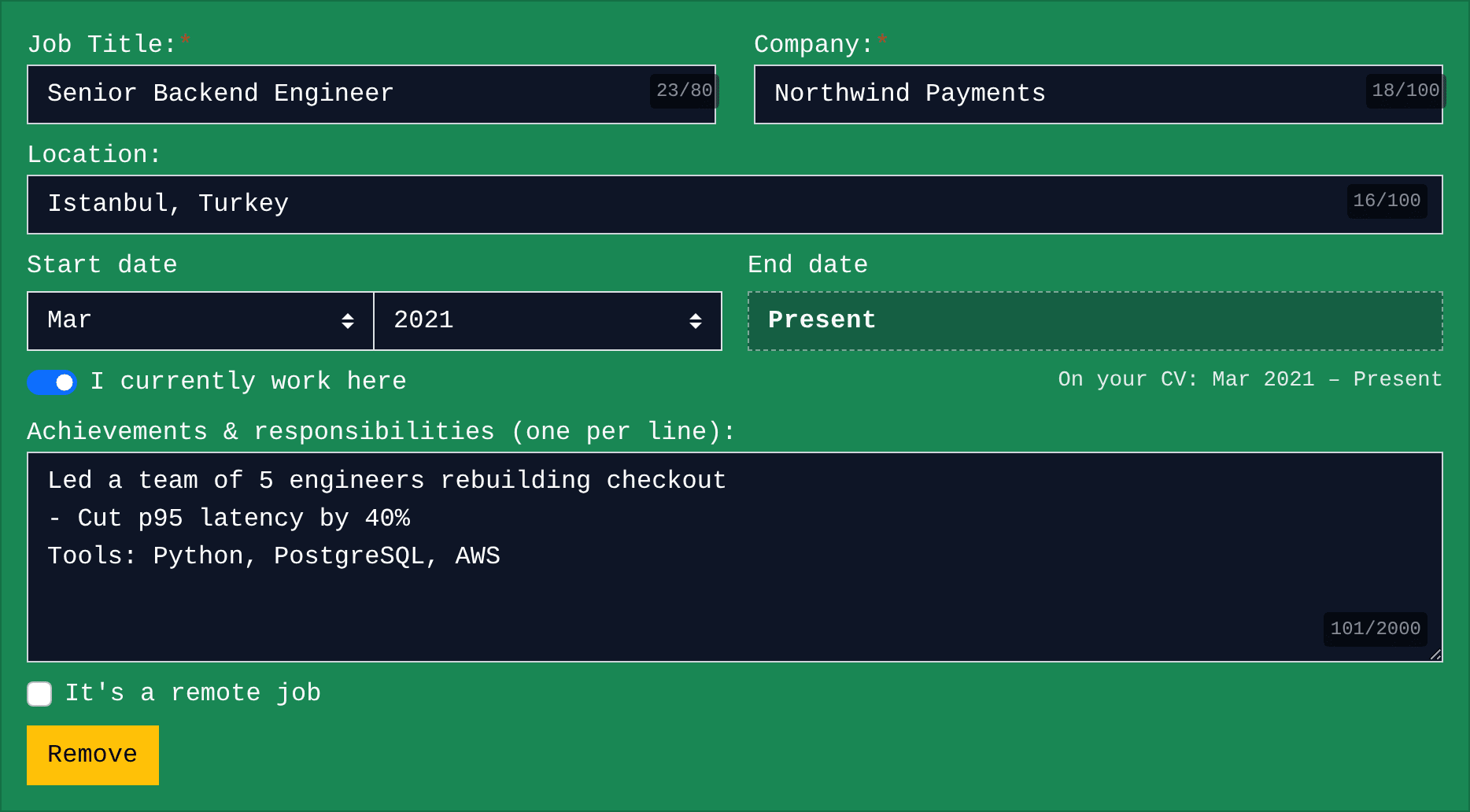
- Start and end dates picked from month and year dropdowns, an “I currently work here” switch, and a live preview of how the dates will read on your CV.
- Job location, and whether the job was remote.
- Achievements, one per line. Each line becomes a bullet point. (Before, pressing Enter didn’t even make a new line. Sorry about that.)
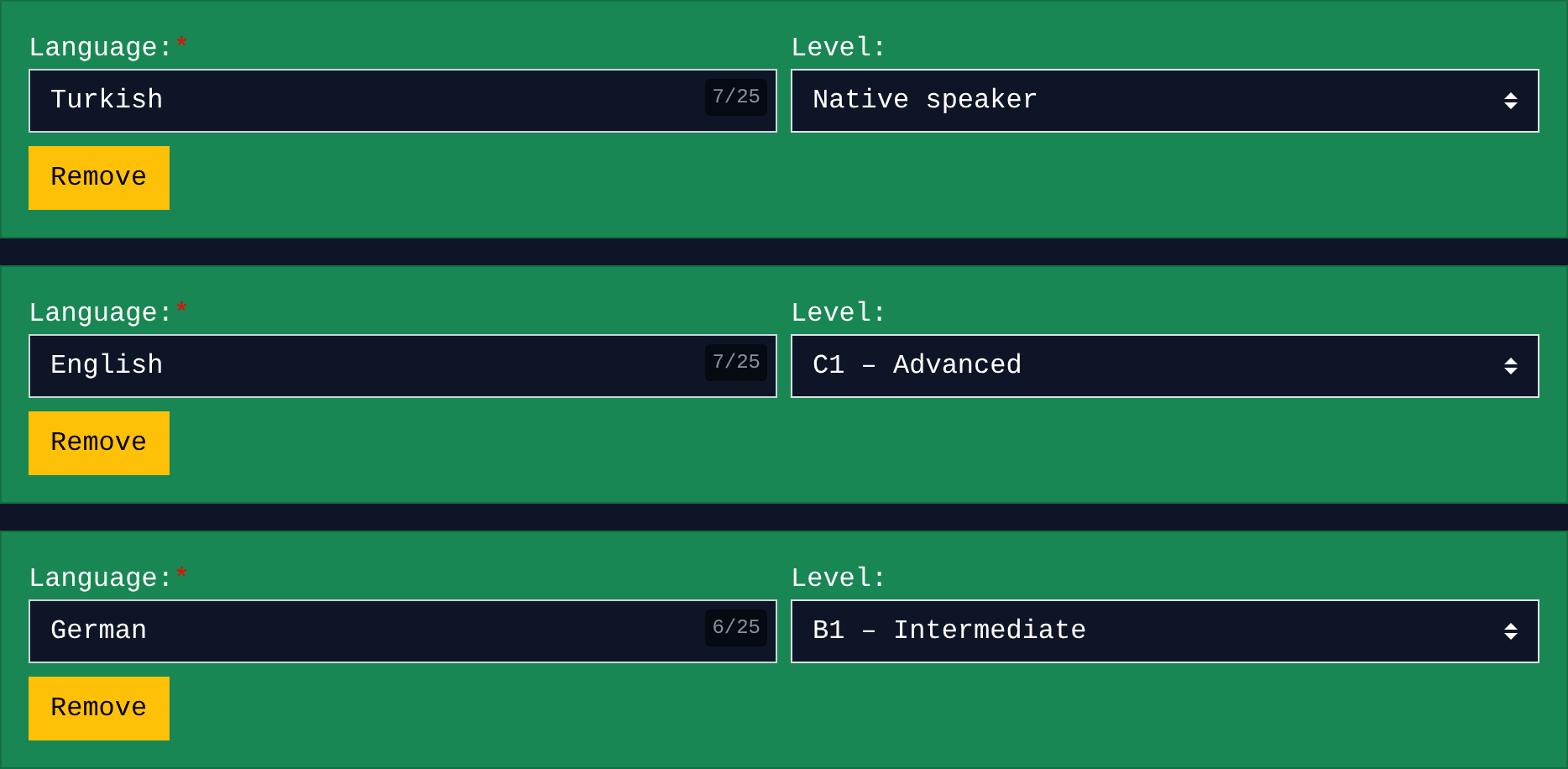
- Language levels on the CEFR scale, from A1 (beginner) to C2 (proficient), plus “Native speaker”.
And there’s a live ATS checklist at the bottom that updates as you type:
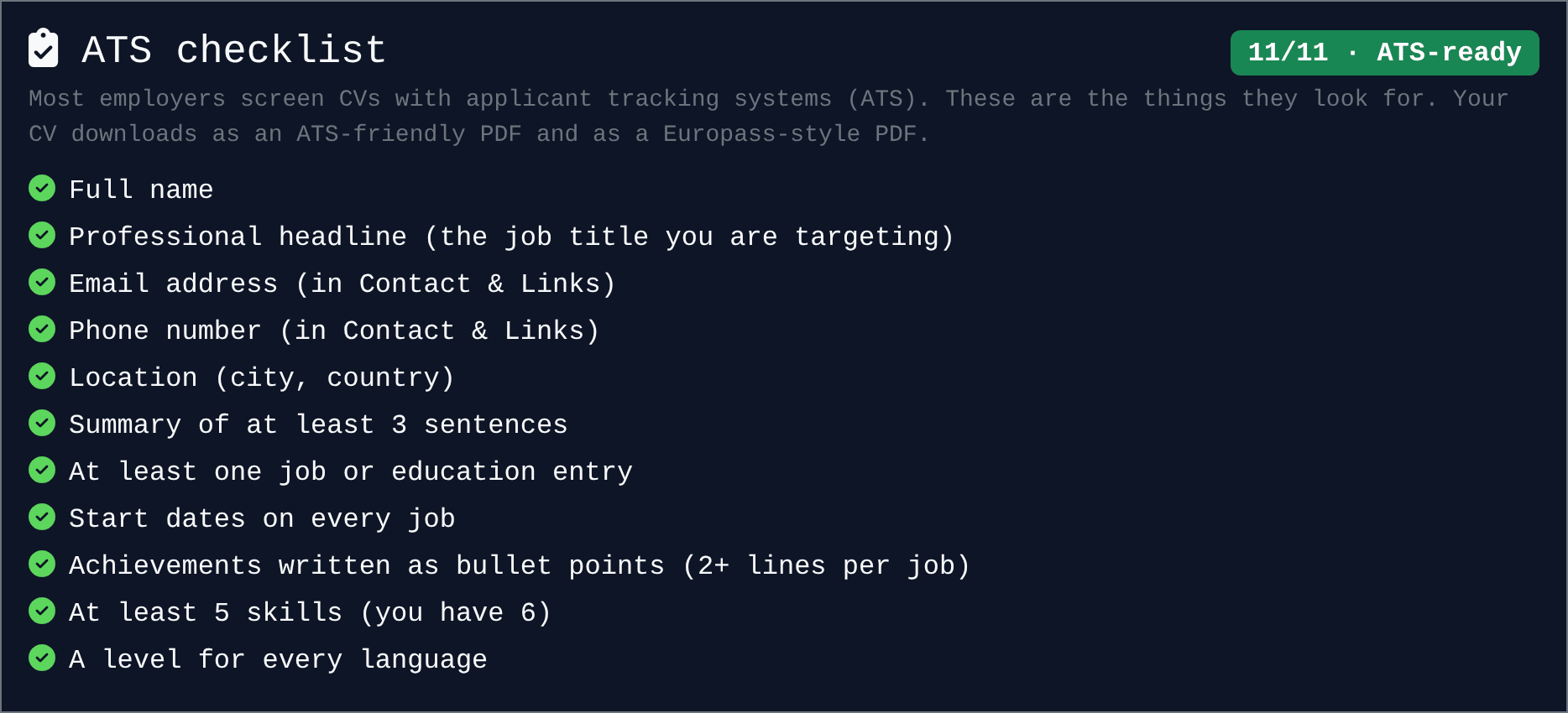
It won’t write your CV for you, but it catches the things that most often get CVs skipped: a missing phone number, jobs without dates, a one-line summary, too few skills.
8 ATS tips that work with any CV
Whether or not you use Benture, these hold for almost every tracking system:
- Use the job ad’s words. If the ad says “Project Management”, write “Project Management”, not just “PM”. Put them in your headline, summary and skills.
- Keep standard headings. “Work Experience”, not “My Journey”.
- Date every job. Month and year if you can. Jobs without dates often get ignored in “years of experience” filters.
- Put achievements in bullets, with numbers. “Cut page load time by 40%” beats “Worked on performance”.
- Avoid columns, tables and text inside images. They’re the most common reason a CV gets scrambled.
- Put contact details in the body, not in the page header or footer.
- Don’t stuff keywords. Recruiters read the CV after the ATS does. White text and keyword lists backfire.
- Follow the instructions. If an employer asks for Word (.docx), send Word. For everything else, a text-based PDF like ours is safe.
Already have a Benture CV?
Nothing to do: your CV already downloads in the new formats. For the best result, open the CV maker, check the ATS checklist, pick a level for each language and add month/year dates to your jobs. It takes about two minutes.
We also fixed a few things along the way. Theme colors and some fonts now stay the way you set them when you save, and “&” no longer shows up as “&”.
Don’t have one yet? It’s free: create your CV on Benture, then browse open remote jobs and apply with it.